RocketMQ
RocketMQ is a high-performance message queue middleware that supports various scenarios such as ordered messaging, delayed messaging, and batch messaging. It is widely used in high-concurrency systems in finance, e-commerce, and other industries. Integrated with Tapdata, RocketMQ enables rapid construction of stable real-time data pipelines, helping enterprises achieve system decoupling and data-driven operations, thereby improving overall responsiveness.
Supported Versions
4.9.x and above
Considerations
After logging into the TapData platform, click the  > Notification Settings at the top right corner. You can set up custom notification rules to automatically trigger notification processes. The main types are task operation notifications and Agent notifications. The specific notification items include:
- For Tapdata Enterprise/Community users: upgrade the platform to the latest version
- For Tapdata Cloud users: upgrade the Agent to the latest version
Connect to RocketMQ
-
Log in to TapData platform.
-
In the left navigation panel, click Connections.
-
On the right side of the page, click Create.
-
On the redirected page, search for and select RocketMQ.
-
Configure the RocketMQ data source as described below:
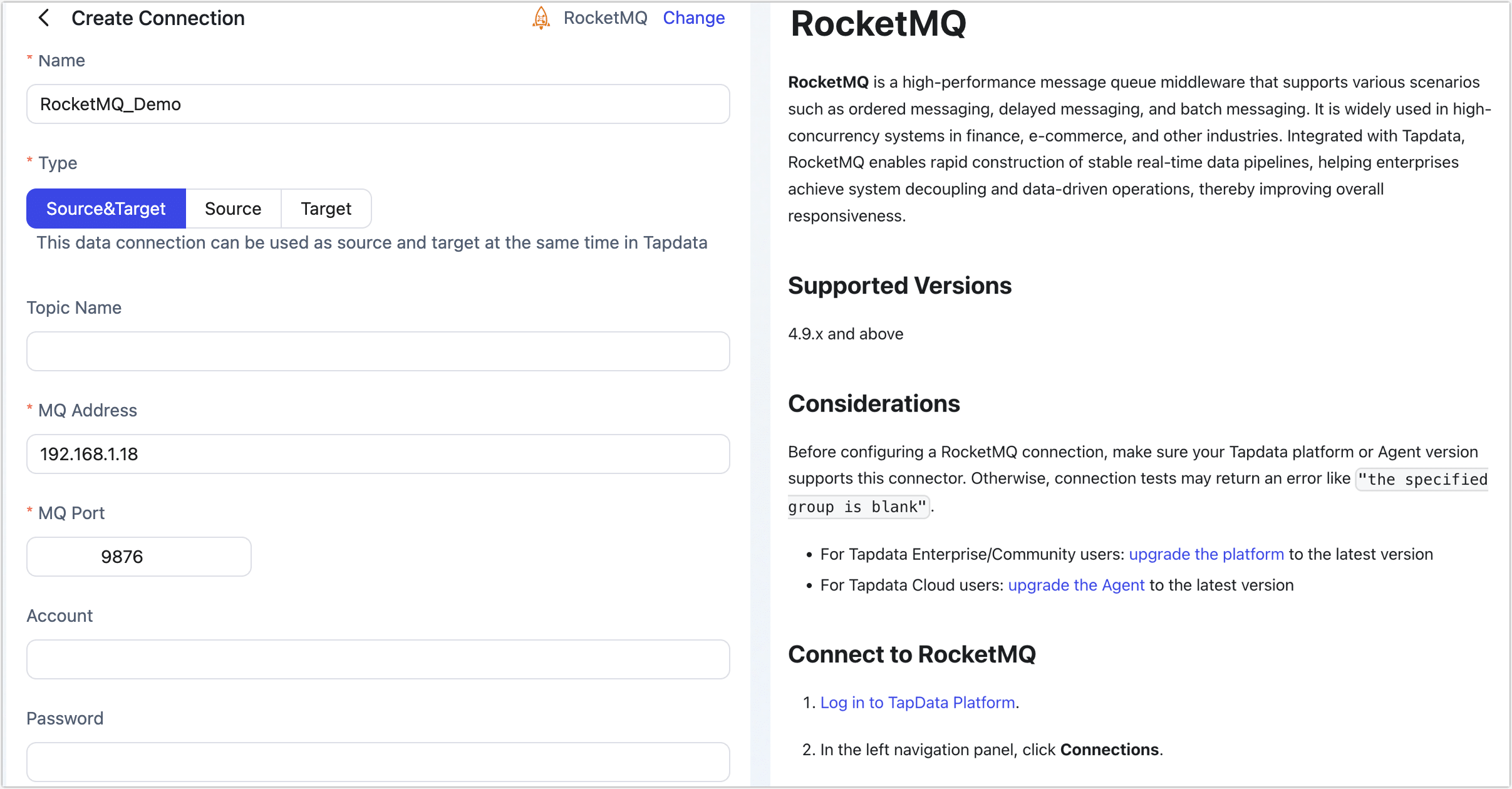
- Connection Settings
- Name: Enter a unique, business-meaningful name.
- Type: RocketMQ can be used as either a source or a target.
- Topic Name: Leave empty to load all available topics. You can also manually specify topic names; use commas (
,) to separate multiple topics. - MQ Address: Enter the RocketMQ server address (IP or domain supported).
- MQ Port: Service port of RocketMQ. Default is 9876. Tapdata reads message data via this port.
- Account / Password: Enter the configured RocketMQ username and password.
- Advanced Settings
- CDC Log Caching: Mining the source database's incremental logs. This allows multiple tasks to share the same source database’s incremental log mining process, reducing duplicate reads and minimizing the impact of incremental synchronization on the source database. After enabling this feature, you will need to select an external storage to store the incremental log information.
- Agent Settings: Defaults to Platform automatic allocation, you can also manually specify an agent.
- Model Load Time: If there are less than 10,000 models in the data source, their schema will be updated every hour. But if the number of models exceeds 10,000, the refresh will take place daily at the time you have specified.
- Enable Heartbeat Table: When the connection type is source or target, you can enable this switch. TapData will create a
_tapdata_heartbeat_tableheartbeat table in the source database and update it every 10 seconds (requires appropriate permissions) to monitor the health of the data source connection and tasks. The heartbeat task starts automatically after the data replication/development task starts, and you can view the heartbeat task in the data source editing page.
- Connection Settings
-
Click Test. If the test passes, click Save.
If the connection test fails, follow the on-screen instructions to resolve the issue.