Step 2: Connect a Data Sources
Once you have installed TapData, you need to connect the Agent to the data sources through TapData, and you can create a data pipeline once the connection has been established.
Before connecting to the data sources, you also need to ensure that the network environment is accessed properly and complete the authorization of the database account. For more information, see Preparation.
Procedure
-
Log in to TapData Platform.
-
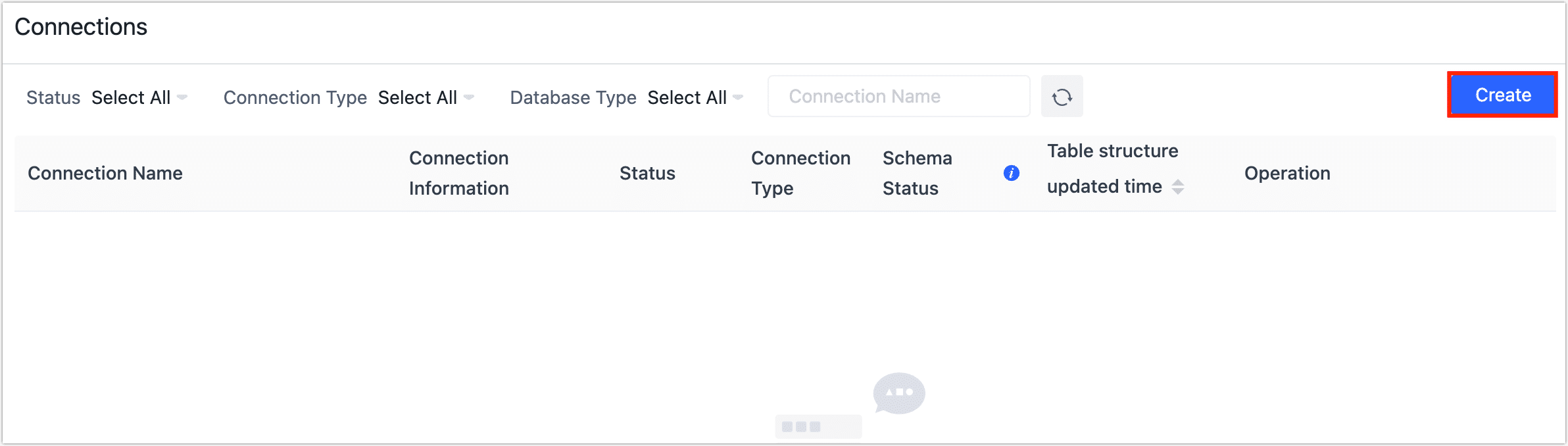
In the left navigation panel, click Connections.
-
On the right side of the page, click on Create. A dialog box will appear, where you can select the desired data source to establish a connection with.
-
After being redirected to the connection configuration page, proceed to fill in the required data source connection information.
On the right panel of the page, you will find helpful information and guidance regarding the configuration of the connection.
tipThe operation process will be demonstrated using MySQL as an example. For more examples, see Connect Data Sources.

- Connection Settings
- Name: Enter a unique name with business significance.
- Type: Support using MySQL as either a source or target database.
- Deployment Mode: Support for single-node and primary-replica architecture. When selecting the primary-replica architecture, provide the primary and replica server addresses and service ports. The primary server information should be entered in the first row.
- Server Address: Database connection address.
- Port: Database service port.
- Database: The database name. Each connection corresponds to one database. If there are multiple databases, create multiple connections.
- Username: The database username.
- Password: The database password.
- Advanced Settings
- Connection Parameter String: Default is
useUnicode=yes&characterEncoding=UTF-8, indicating that data transmission will use the UTF-8 encoded Unicode character set, which helps avoid character encoding issues. - Timezone: Default is set to 0 timezone. If configured to another timezone, it will affect fields without timezone information (e.g.,
datetime). Fields with timezone information (e.g.,timestamp,date, andtime) are not affected. - CDC Log Caching: Mining the source database's incremental logs. This allows multiple tasks to share the same source database’s incremental log mining process, reducing duplicate reads and minimizing the impact of incremental synchronization on the source database. After enabling this feature, you will need to select an external storage to store the incremental log information.
- Contain Table: The default option is All, which includes all tables. Alternatively, you can select Custom and manually specify the desired tables by separating their names with commas (,).
- Exclude Tables: Once the switch is enabled, you have the option to specify tables to be excluded. You can do this by listing the table names separated by commas (,) in case there are multiple tables to be excluded.
- Agent Settings: Defaults to Platform automatic allocation, you can also manually specify an agent.
- Model Load Time: If there are less than 10,000 models in the data source, their schema will be updated every hour. But if the number of models exceeds 10,000, the refresh will take place daily at the time you have specified.
- Enable Heartbeat Table: When the connection type is source or target, you can enable this switch. TapData will create a
_tapdata_heartbeat_tableheartbeat table in the source database and update it every 10 seconds (requires appropriate permissions) to monitor the health of the data source connection and tasks. The heartbeat task starts automatically after the data replication/development task starts, and you can view the heartbeat task in the data source editing page.
- Connection Parameter String: Default is
- SSL Settings: Choose whether to enable SSL for the data source connection to enhance data security. After enabling this feature, you need to upload CA files, client certificates, client key files, etc.
- Connection Settings
-
Click Test at the bottom of the page, and when passed the check, click Save.
tipIf the connection test fails, follow the prompts on the page to fix it.