Query API through RESTful
TapData allows you to expose real-time data as secure RESTful APIs. Once an API service is published, you can query it directly from within the platform using the built-in debugger, or externally using tools like Postman. This guide walks you through both methods.
Before You Begin
Make sure the API you want to query has already been created and published.
Query via Built-in Debugger
You can test and preview your API directly in TapData—no need for external tools.
-
Log in to TapData
-
Go to Data Services > API List in the left navigation menu.
-
Find your published API and click the service name.
-
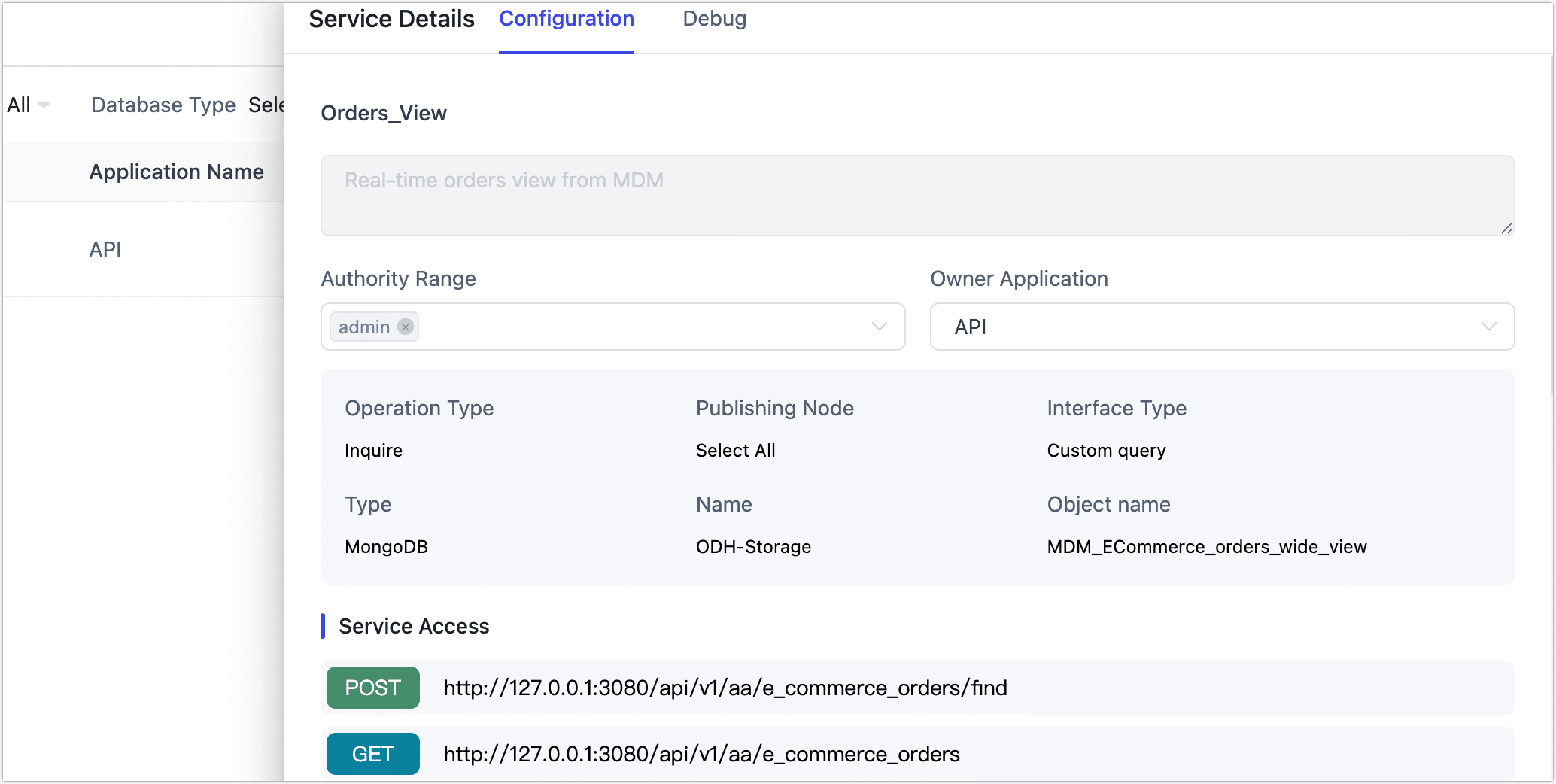
In the right panel, scroll to the Access URL section to copy the service endpoint.
-
Click the Debug tab.
-
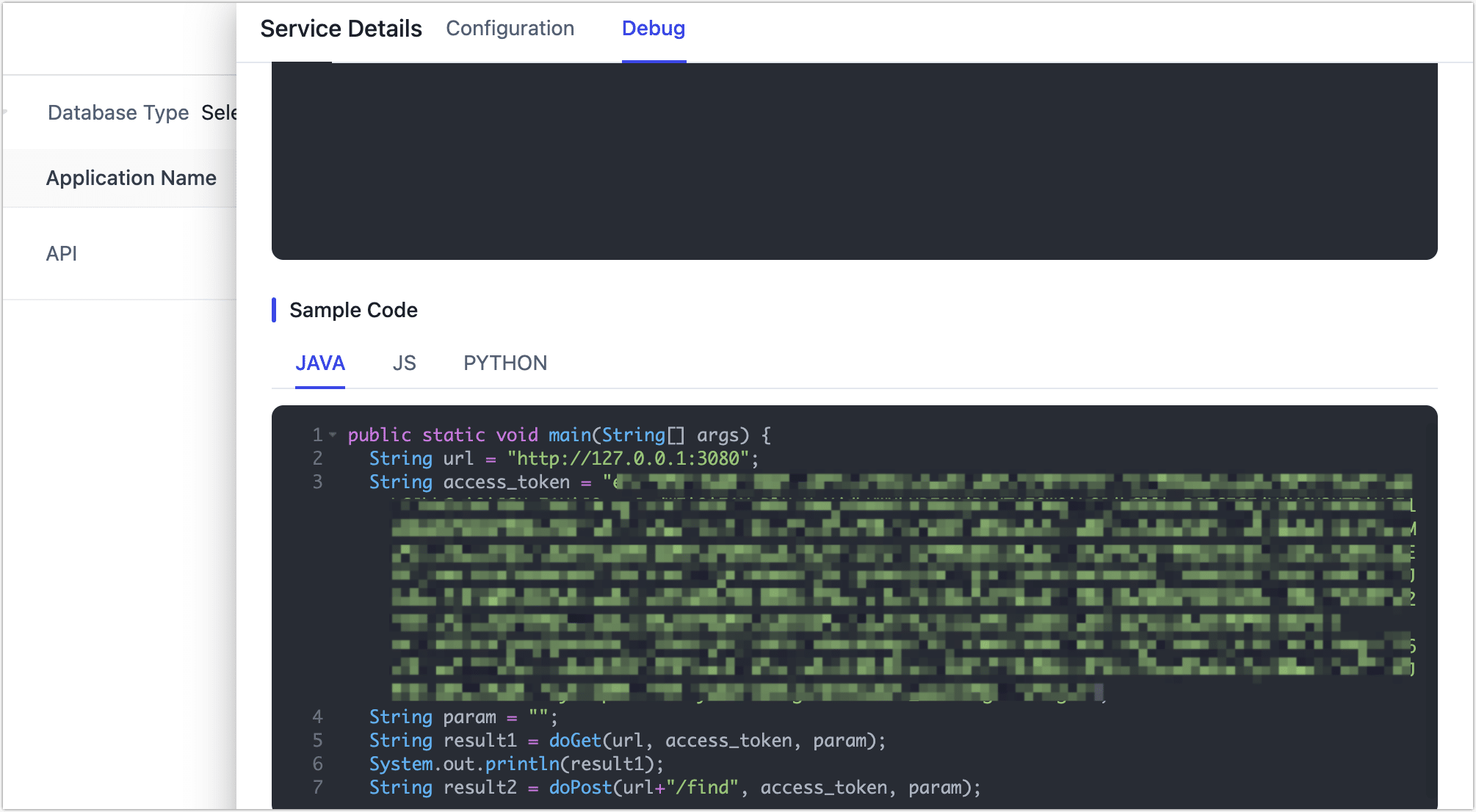
Scroll to the Example Code section to get a sample request and the authentication token.
-
Click the Query button to test your API.
Need to filter results? You can add query parameters to the request URL. See API Query Parameters for details.
Query via Postman (Optional)
If you'd prefer to use an external tool or automate API testing, Postman is a great option.
-
Open Postman and select your Workspace at the top.
-
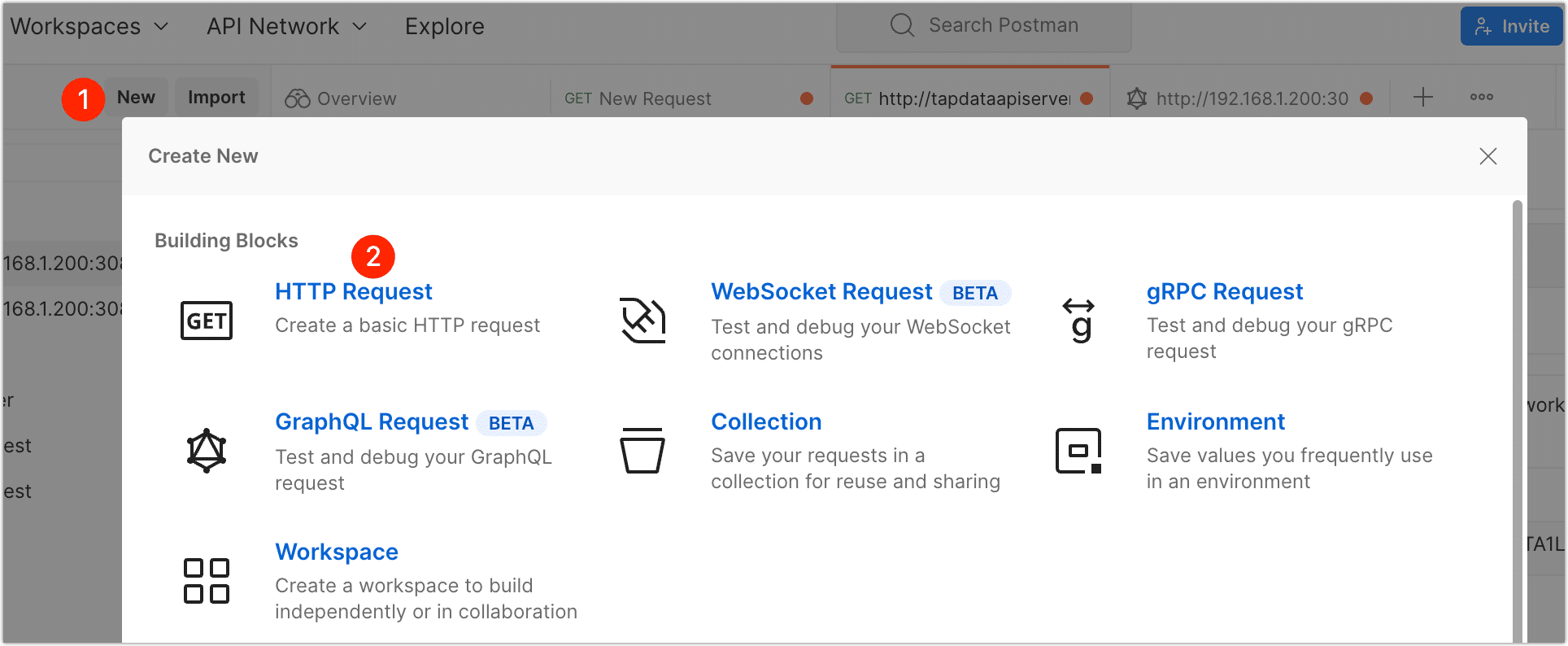
Click New and choose HTTP Request.
-
In the request URL field, paste the API endpoint you copied from TapData.
-
(Optional) Click Query Params to add filter conditions to your request.
For supported query parameters, see API Query Parameters.
-
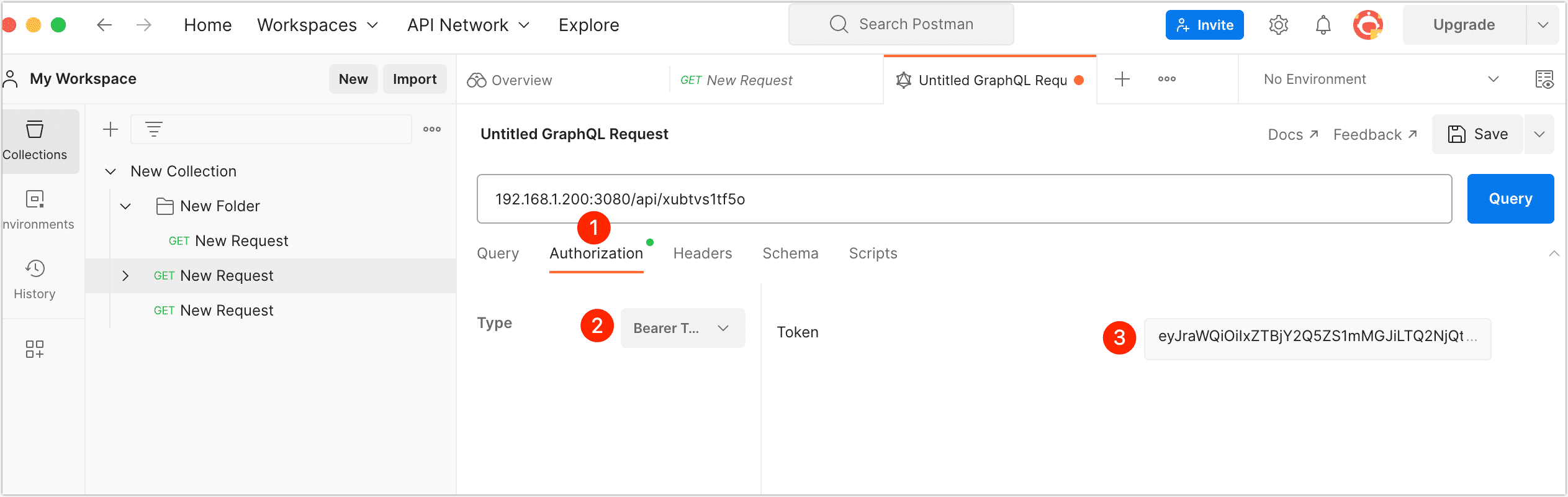
Click Authorization, select Bearer Token, and paste the Access Token you got from TapData.
-
Click Send. You’ll get a real-time response from the API.
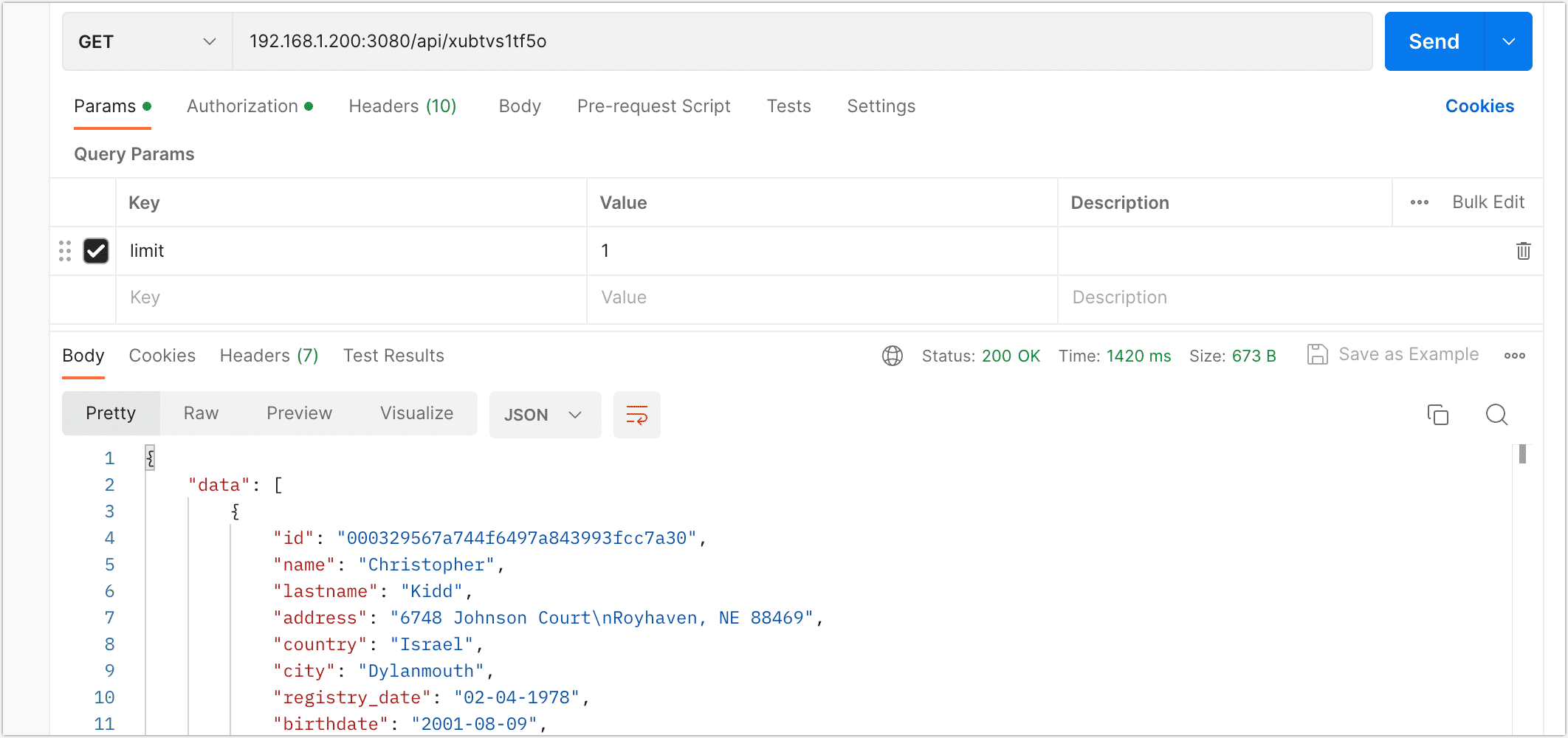
Common response codes
| Code | Message | Meaning |
|---|---|---|
| 200 | OK | Request succeeded |
| 401 | Unauthorized error: token expired | Token expired; generate a new one |
| 404 | Not Found error: endpoint not found | API does not exist or is not yet published—check the URL or wait for the publish to finish |
| 429 | Rate limit exceeded. Maximum N requests per second allowed | You hit the rate limit; retry later or raise the limit in the API settings |
FAQ
-
Q: The API takes too long to return data or times out
A: Add indexes on every column used in
WHERE,ORDER BY, or joins. If the delay persists, enable response caching or increase the query timeout in the API settings. -
Q: The payload doesn’t look right
A: Check the data-source model and the underlying table—make sure the data is current and that any field-merging logic matches what you expect.