Elasticsearch
Elasticsearch is a distributed, RESTful search and analytics engine capable of addressing a growing number of use cases.
TapData Cloud supports Elasticsearch as a target data source to help you quickly build data pipelines for scenarios such as log data write analytics, content management, and search analytics. This article provides a comprehensive guide on how to add Elasticsearch to TapData Cloud.
Supported Versions
Elasticsearch 7.6
Connect to Elasticsearch
-
Log in to TapData platform.
-
In the left navigation panel, click Connections.
-
On the right side of the page, click Create.
-
In the pop-up dialog box, search for and select Elasticsearch.
-
Fill in the connection information for Elasticsearch on the redirected page, following the instructions provided below.
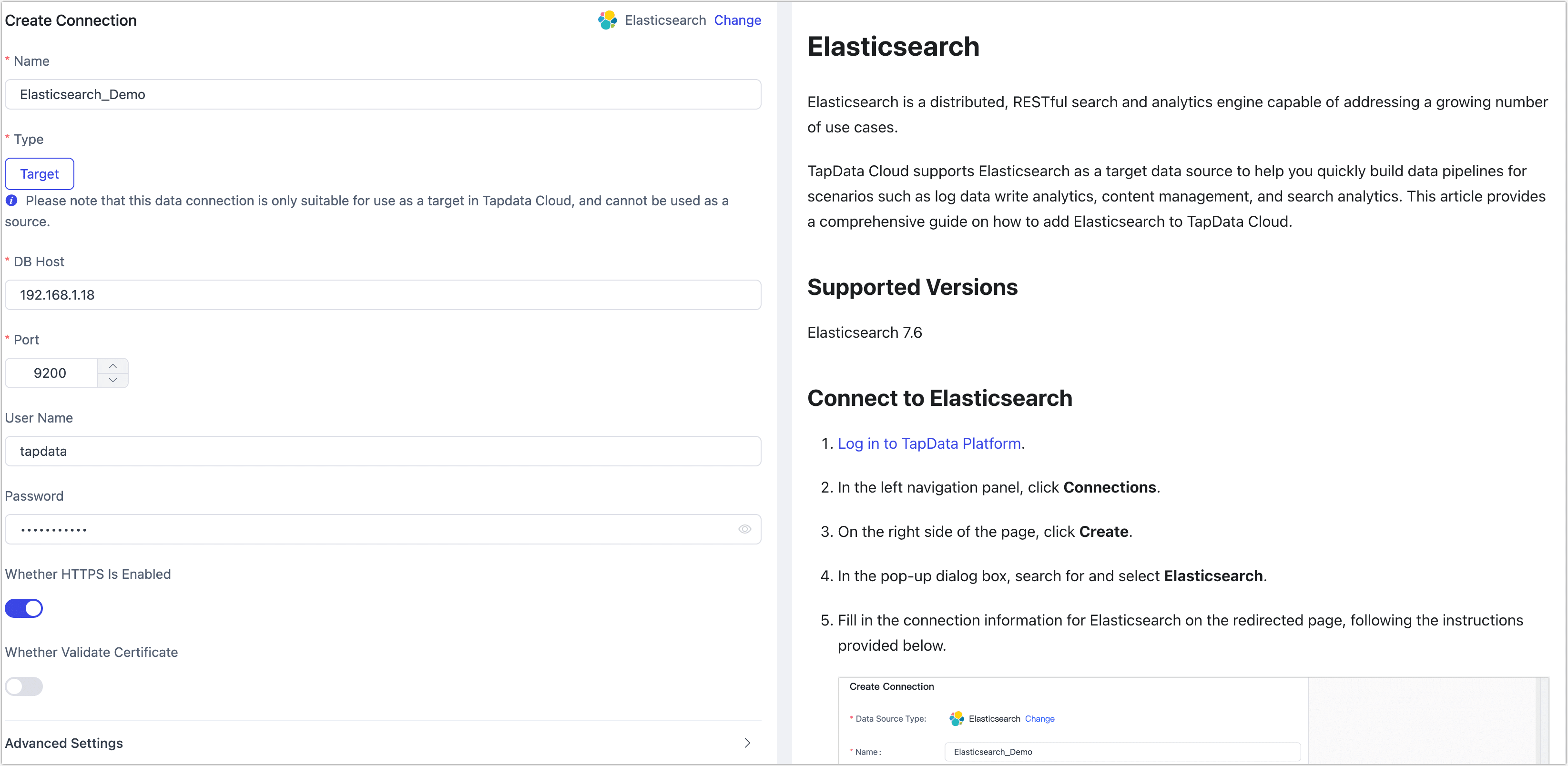
- Name: Fill in a unique name that has business significance.
- Type: Currently only supported as a Target.
- DB Host: Fill in the Elasticsearch connection address.
- Port: Fill in the service port for Elasticsearch, for example 9200.
- User Name, Password: Fill in the username and password for Elasticsearch separately. If authentication is not enabled, you can leave it blank.
- Whether HTTPS is Enabled: Choose whether to enable an HTTPS connection. When this option is enabled, you can select whether to verify the certificate and upload certificate files.
- Agent settings: Defaults to Platform automatic allocation, you can also manually specify an agent.
- Model load time: When the number of models in the data source is less than 10,000, the model information is refreshed every hour; if the model data exceeds 10,000, the model information is refreshed every day at the time you specify.
-
Click Test Connection, and when passed, click Save.
tipIf the connection test fails, follow the prompts on the page to fix it.