Build View with Data Pipeline
Use TapData’s Data Pipeline to build real-time, incremental materialized views with flexible, visual workflows—perfect for adding rich processing steps and custom transformations.
This guide expands on the example in Design Incremental Materialized Views and shows you how to build it using the visual Data Pipeline.
TapData’s Data Pipeline also supports rich processing nodes between your source and target. You can add steps for field renaming, row filtering, and more—all without writing complex SQL or maintaining separate ETL jobs.
Prerequisites
Make sure you have already connected your source MySQL database and target MongoDB database in TapData.
If you haven’t set them up yet, see Connect Data Sources.
Procedure
Follow these steps to design an advanced real-time view with nested user profiles and detailed order items.
-
Log in to TapData platform.
-
In the left navigation panel, go to Data Transformation and open Data Pipeline.
-
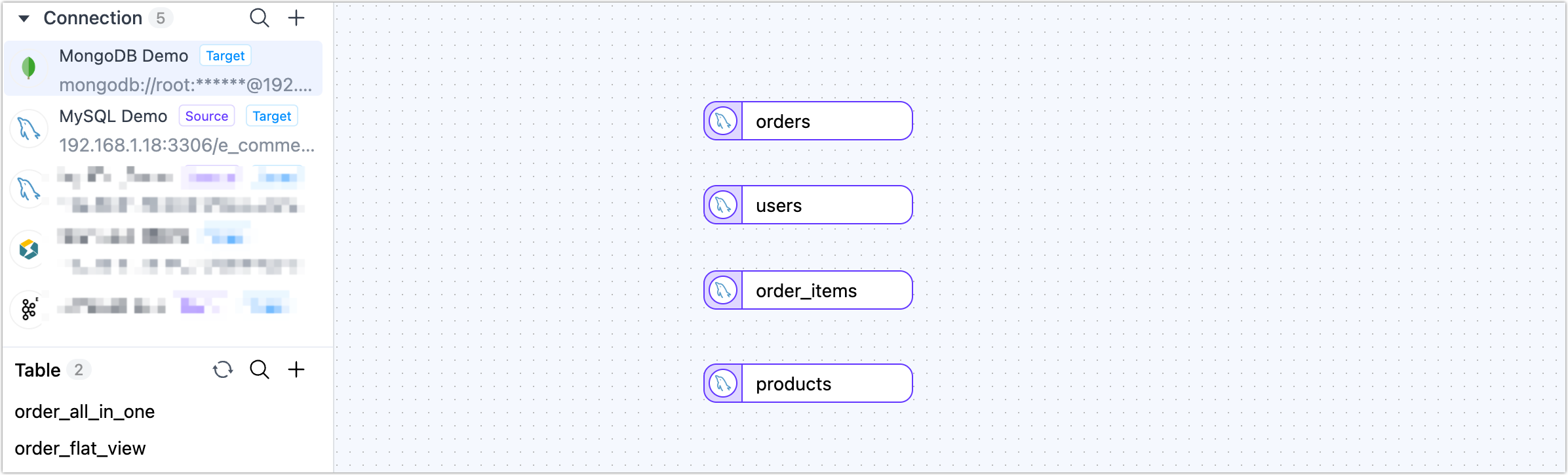
Add source nodes to the canvas.
-
Drag your source MySQL connection onto the canvas and choose orders as the main table.
-
Repeat this step to add users, order_items, and products as separate nodes.
-
-
Set up the join logic.
-
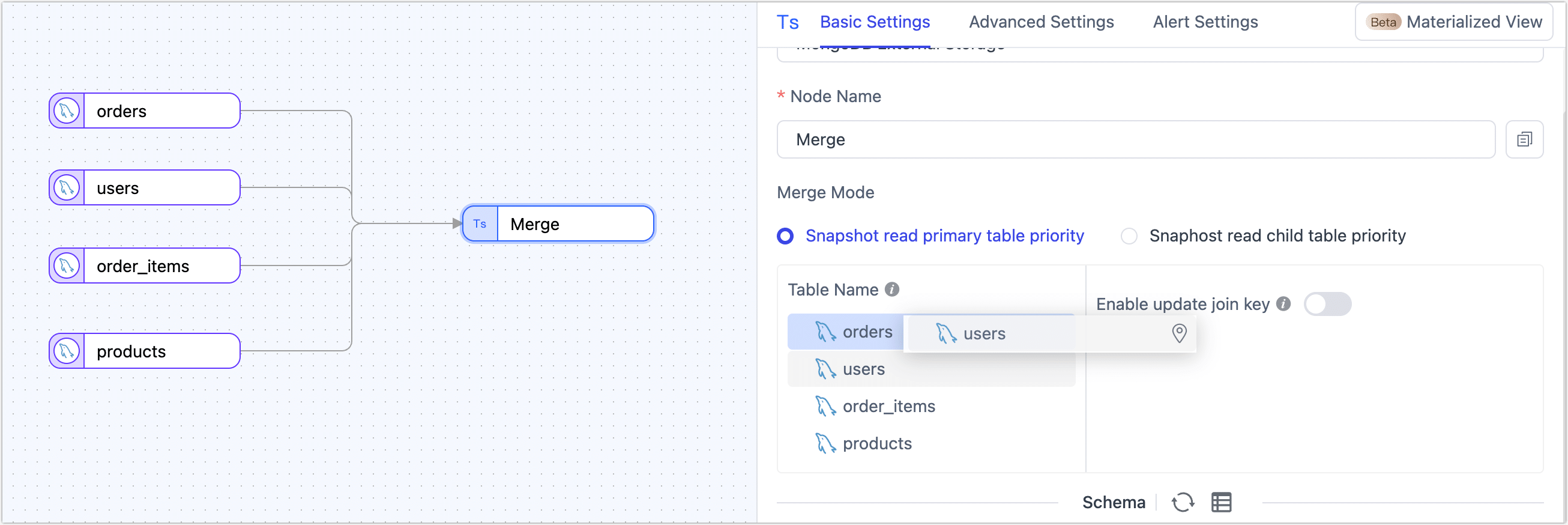
Drag a Master-Slave Merge node onto the canvas.
-
Connect the orders node and all other source nodes to this merge node to define their relationships.

-
-
Embed the user profile.
-
Drag the users node onto the orders node.
-
Choose Document as the embed type, then set the field path to
user_infoand map the join key touser_id.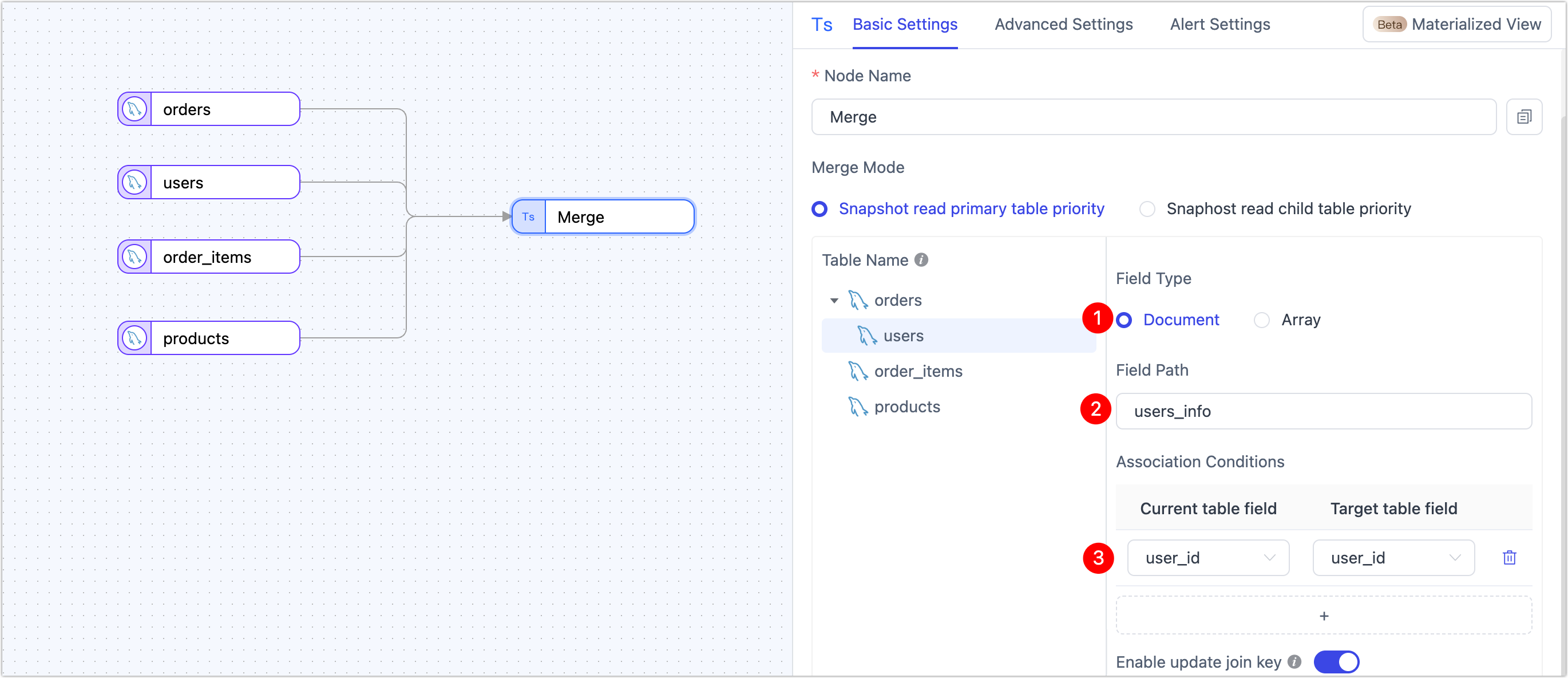 tip
tipDocument embedding nests the entire user record inside each order. This is ideal for marketing segmentation and analysis without separate lookups.
-
-
Include order items as an array.
-
Drag the order_items node onto the orders node.
-
Choose Array as the embed type, then set the field path to
product_itemsand map the join key toorder_id.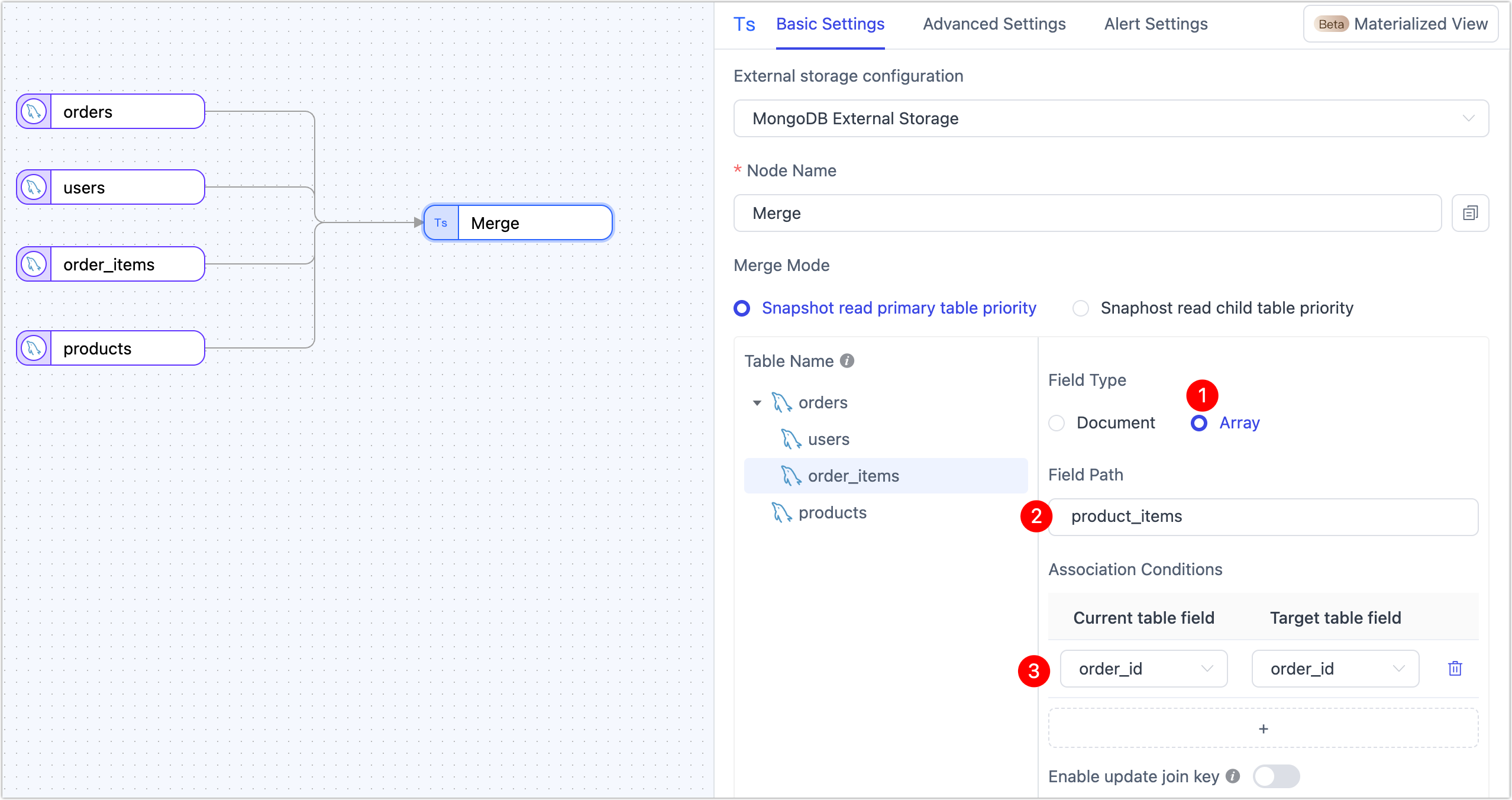 tip
tipArrays allow you to store all order items as a single field in the order document—perfect for representing one-to-many relationships natively.
-
-
Enrich order_items with product details.
-
Drag the products node onto the order_items table.
-
Choose Document or Flatten depending on your data structure.
-
Map the join key to
product_idso product details are included in each order item.Document nests the product data as an object, while Flatten merges product fields directly into order_items—choose the style that fits your target schema.
-
-
Configure the target output.
-
Drag your target MongoDB connection onto the canvas.
-
Connect the Master-Slave Merge node to the MongoDB target.
-
Select the target collection or enter a custom name. TapData will create it automatically if it doesn’t exist.
-
Specify the update key to enable upsert behavior and automatic index creation.
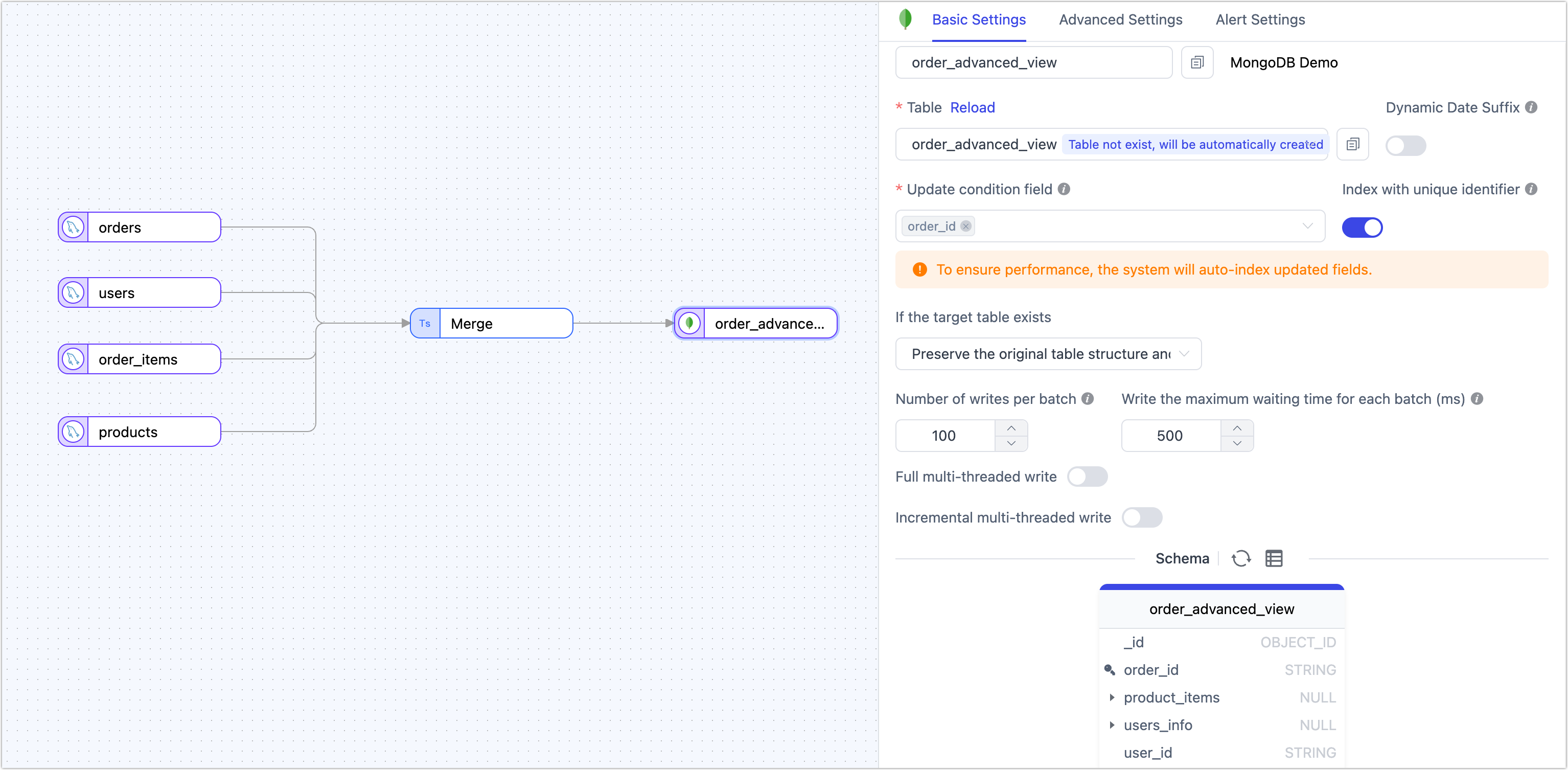
Optional settings include:
- Initial load behavior: Clear existing data or append to it.
- Batch size and max wait time: Fine-tune performance for large loads.
- Multithreaded writes: Configure for higher throughput in full or incremental sync.
-
-
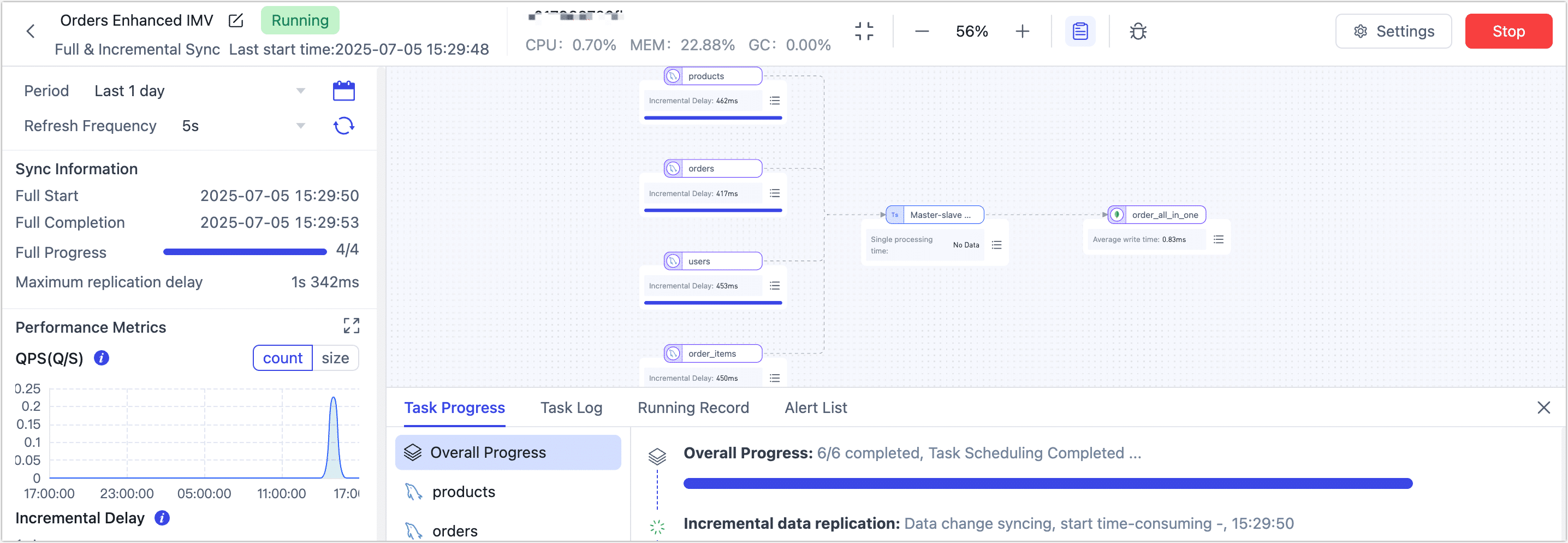
Click Start to launch the real-time materialized view.
Once running, monitor throughput, latency, and event processing stats in real time.
Verify Results
Once your task is running, log in to your target MongoDB to explore the new view. Here’s an example document illustrating the nested structure:
{
  _id: ObjectId('6868d470d9b9cd512feb6b69'),
  order_id: 'o2001',
  order_amount: Decimal128('759.97'),
  order_status: 'PAID',
  order_time: 2025-01-02T10:00:00.000Z,
  payment_method: 'CREDIT_CARD',
  user_id: 'u001',
  product_items: [
    {
      quantity: 1,
      item_id: 'i3001',
      product_id: 'p101',
      order_id: 'o2001',
      category: 'Electronics',
      product_name: 'Smartphone',
      unit_price: Decimal128('699.99')
    },
    {
      quantity: 2,
      item_id: 'i3002',
      product_id: 'p102',
      order_id: 'o2001',
      category: 'Accessories',
      product_name: 'Phone Case',
      unit_price: Decimal128('29.99')
    }
  ],
  user_info: {
    city: 'New York',
    country: 'USA',
    signup_time: 2024-12-20T12:00:00.000Z,
    user_id: 'u001',
    user_level: 'GOLD',
    user_name: 'Alice'
  }
}
This structure is analysis-ready, API-friendly, and tailored for real-time use. Analysts can easily filter and aggregate orders, marketing can segment by user attributes, and developers can serve complete order details in a single API response without expensive joins.
What’s Next?
- Monitor your task to track throughput and latency in real time.
- Validate data accuracy using built-in tools or source queries.
- Publish the view as an API so other teams or systems can consume fresh, structured order data via REST or GraphQL.