Validate Data Quality
Tapdata’s data validation feature helps you ensure data integrity throughout your real-time pipelines. Built on robust in-house technology, it verifies that your replicated data remains consistent between source and target, helping you meet strict production-quality requirements. This guide explains how to configure and manage data validation tasks.
Background
Maintaining trust in your data is critical—especially when delivering real-time insights or meeting strict compliance requirements. Tapdata’s CDC-powered pipelines deliver high-quality replication to the Platform Cache (FDM Layer), while built-in validation tools ensure your data remains consistent, reliable, and fully traceable at every step.
Tapdata provides a flexible data validation framework that helps you:
- Confidently verify record counts and field-level accuracy between your source systems and the Platform Cache (FDM Layer)
- Quickly detect and analyze discrepancies to support real-time operations
- Configure alerts and outputs to fit your team’s workflow
Whether you’re managing a single replication job or hundreds of pipelines across teams, Tapdata’s validation features give you complete confidence in your data integrity.
Limitation
Data validation is not supported for queue-based sources like Kafka.
Configure a Validation Task
-
Log in to TapData Platform.
-
In the left sidebar, select Data Validation.
-
On the validation page, click the button in the top-right corner to choose your validation type:
- Task Consistency Validation: Use this to validate data consistency for a specific replication task between your source and FDM layer.
- Any Table Data Validation: Use this option to validate data between any two tables you have access to in Tapdata, even if they aren’t linked to a specific replication task. This is useful for ad hoc checks or legacy system comparisons.
-
In the setup page, complete the following fields:

- Choose Task: Select the replication task you want to validate. Tasks created when syncing to the FDM layer follow the naming pattern
TableName_Clone_To_FDM_<random_suffix>. Tip: You can also see the linked task by clicking the table name within the FDM layer view. - Validation Name: Enter a meaningful name for your validation task that reflects the business context.
- Type: Choose the validation method that matches your needs:
- Count Validation: Compares row counts only. Fastest, but doesn’t show detailed differences.
- All Fields Validation: Compares all fields row by row. Shows all differences but is slower.
- Related Fields Validation: Compares only key fields that have sortable indexes. Medium speed, good for partial checks.
- Hash Validation: Computes and compares hashes between source and target tables. Faster than row-by-row but only supported for homogeneous data sources.
- Advanced Configuration (Optional): Click Advanced Settings to customize:
- Result Output: Choose whether to output all mismatched records or only those missing in the source.
- Validation Frequency: By default, validation runs once. You can schedule repeated validations with a start time, end time, and interval.
- Validation Task Alert: Set up rules for sending alerts when the task fails or when discrepancies are found.
- Number of Saved Errors: Set the maximum number of inconsistent records to save (default is 100, max 10,000). Recommended to use higher limits for better traceability.
- Table Configuration: By default, Tapdata automatically loads the source and target tables from your replication or development task. You can enable Data Filtering to validate only a subset of data with custom SQL or aggregation queries. Advanced users can also add custom JavaScript validation logic.
- Choose Task: Select the replication task you want to validate. Tasks created when syncing to the FDM layer follow the naming pattern
-
Click Save to add the validation task to your list. Then, in the task list, click Run next to your new validation task to start validation.
Manage Validation Results
Click the Result link for any validation task to view its results in depth. For any inconsistencies, you can:
- Use One-Click Repair to automatically align data between source and target.
- Download detailed mismatch reports for further analysis.
Additionally, you can generate repair SQL for in-depth analysis or execute it manually in the database to fix the issue.
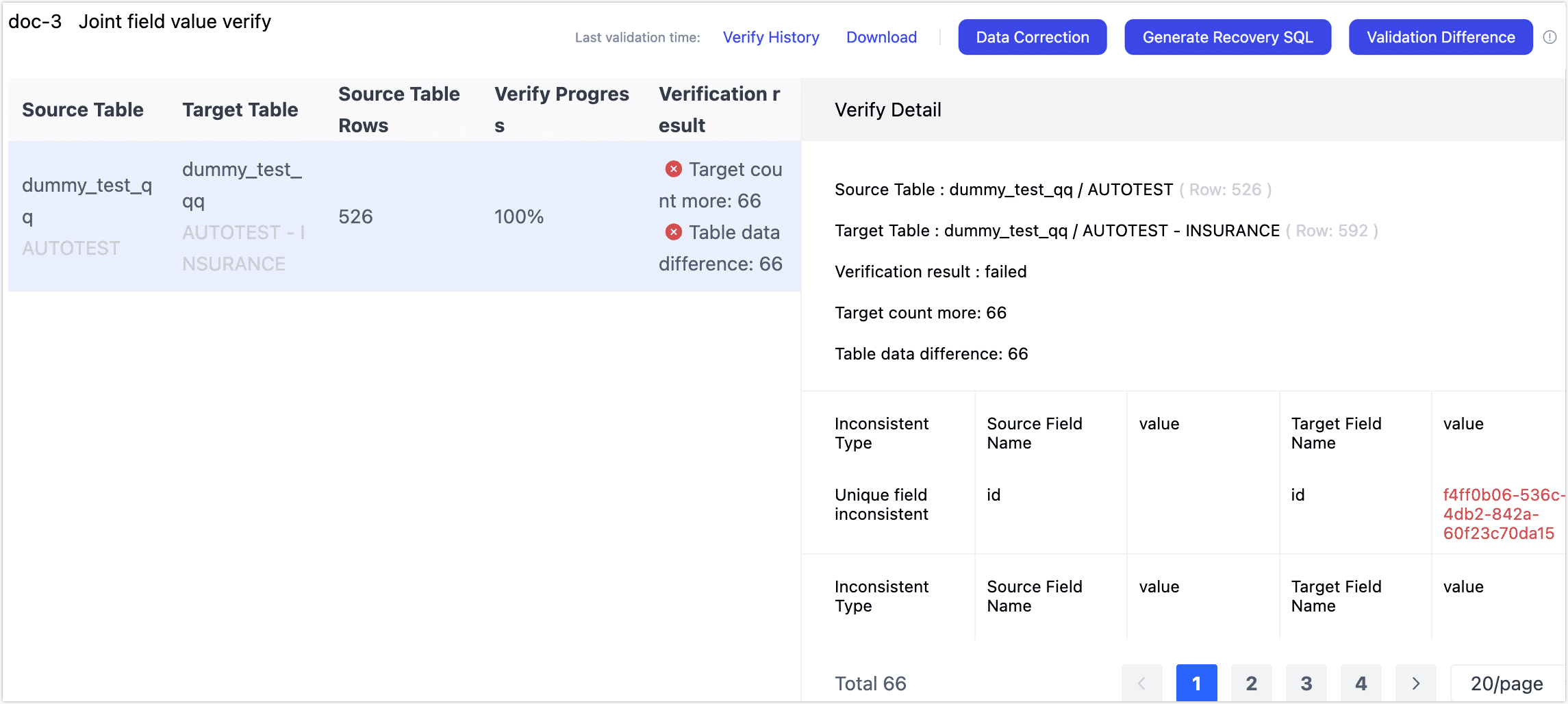
For Full Table Value Validation or Key Field Value Validation, you can also click Diff Validation in the top-right corner to re-run validation only on the previously identified differences, confirming whether they have been resolved.
FAQ
Q: Why might my validation task fail or report differences? A: See our troubleshooting guide here: Data Validation FAQs.